Key points
- Most Samsung TVs from 2018 and LG TVs from 2017 onwards can run a player
- Some TV players need a small activation step
- An inexpensive stick is the backup plan for older TVs
If you own a reasonably recent Samsung or LG TV, you may not need any extra hardware at all. Both brands run their own smart TV systems (Tizen on Samsung, webOS on LG), and both have app stores with IPTV players that can open your Pixlar8k account. This guide explains how to check your TV, install a player and get the line-up on screen.
Check your TV first
- Age: Samsung TVs from about 2018 and LG TVs from about 2017 usually work well. Older models may not have a suitable player, or may run it slowly.
- Software: install any pending update in the TV's support or general settings menu before you begin.
- Connection: if the TV has an Ethernet port, use it. Built-in Wi-Fi on many TVs is weaker than on a modern streaming stick.
Install a player app
- Press the Home button and open the Apps section on Samsung or the LG Content Store on LG.
- Search for the player we recommended in your Pixlar8k welcome message, select it and choose Install.
- Open the app. Many TV players show a device ID or MAC address and a short code on the first screen. Take a photo of that screen.
- If the player needs activating, follow the instructions it shows, which usually means visiting the developer's website on your phone and entering that device ID.
Some TV players charge their own small fee after a trial period. That fee goes to the app developer, not to Pixlar8k. We will tell you which players are free when we send your login.
Add your Pixlar8k details
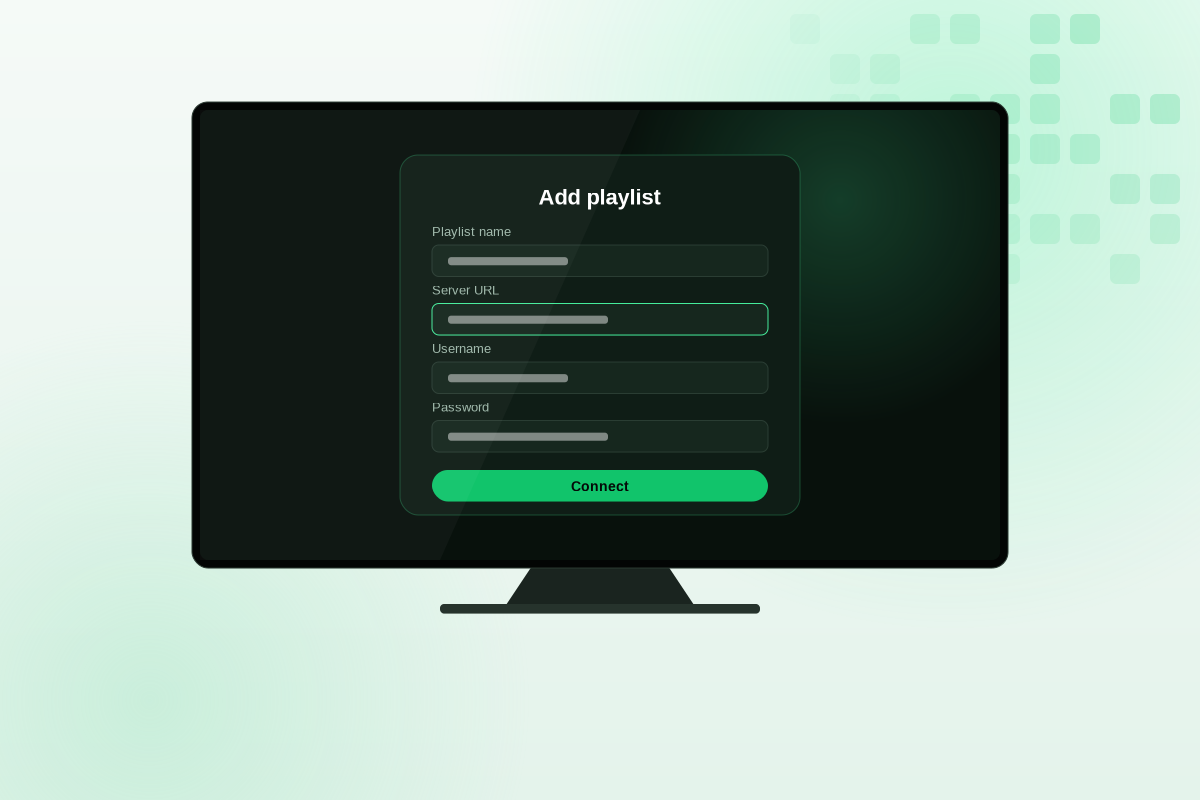
- In the player, choose to add a playlist or log in with Xtream Codes if it is offered.
- Enter the server URL, username and password from our WhatsApp message. Some TV players instead ask you to upload an M3U link on their website; we will send the right format.
- Restart the player and wait while live channels, the guide and the movie library load for the first time.
Get the best picture
- Picture mode: switch the TV out of "Vivid" to "Standard", "Filmmaker" or "Cinema" for more natural colour.
- Motion settings: for sport, a low setting of Samsung's Auto Motion Plus or LG's TruMotion can smooth fast action without the "soap opera" look.
- Game mode off: it lowers input lag but can soften the picture for regular TV.
- Time zone: set it in the TV's general settings so the program guide matches your local time.
If your TV is too old
When a TV cannot run a modern player, or runs it slowly, a Fire TV Stick 4K or a Google TV streamer plugged into a spare HDMI port solves the problem for very little money. It is usually faster than the TV's own system and gets app updates for longer. See the Fire TV Stick guide or the Android and Google TV guide.
Common problems
| Problem | Fix |
|---|---|
| Player not in the store | Your TV model or region may not list it. Ask us for an alternative, or use a streaming stick. |
| Channels load but will not play | Check the activation status in the player, then restart the TV fully by unplugging it for a minute. |
| Guide is empty | Refresh the EPG in the player settings, or re-add the account with Xtream Codes. |
| Picture freezes on Wi-Fi | Use an Ethernet cable or move the router closer. See our freezing fixes. |
Want us to look at it with you? Message us on WhatsApp with your TV model and a photo of the screen.